
Need help? Email cavan@flavdex.com or send feedback or report a bug.
How FlavDex works
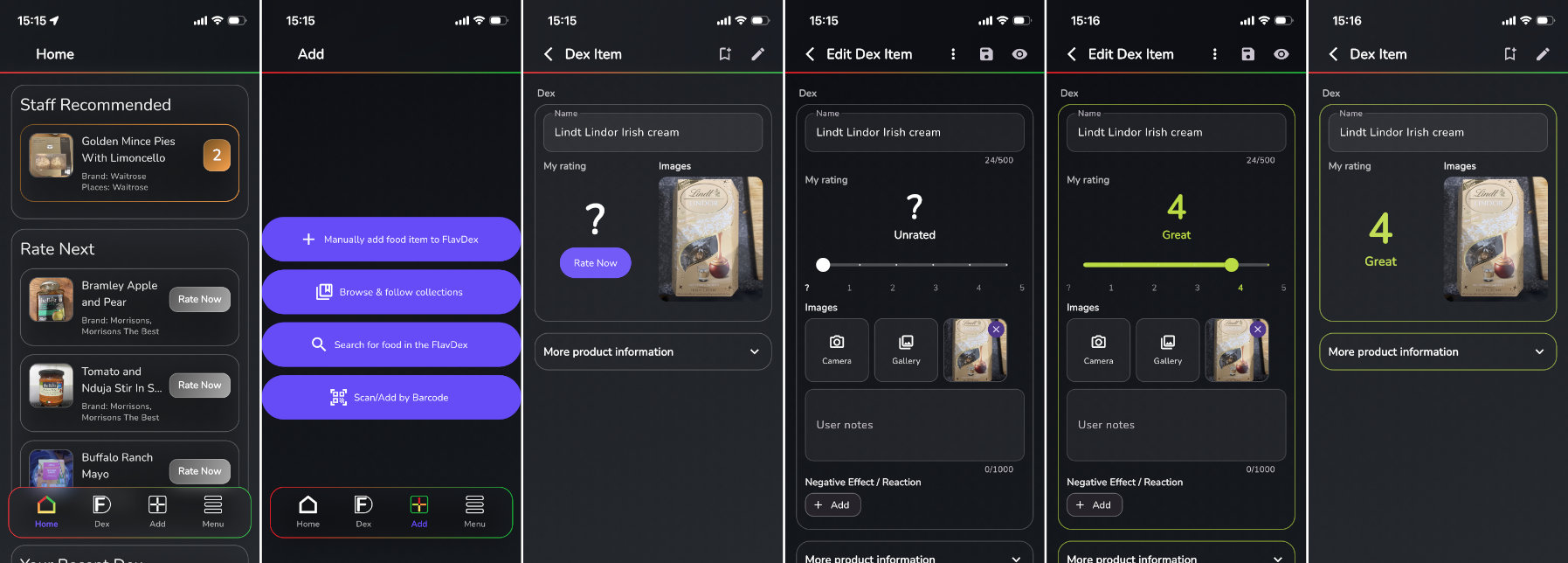
FlavDex helps you remember what you like, discover what to try next, and avoid what you do not. Scan or search for a food or drink, rate it from 1 to 5, and keep ratings and notes in Your Dex.
- Find an item by barcode, package photo, search, or manual entry.
- Rate it from 1 (Avoid) to 5 (Favourite) and add private notes.
- Save it to Your Dex, a collection, the Try List, or Shopping List.
- Search, sort, and filter your items, collections, recipes, and retailers.
Home
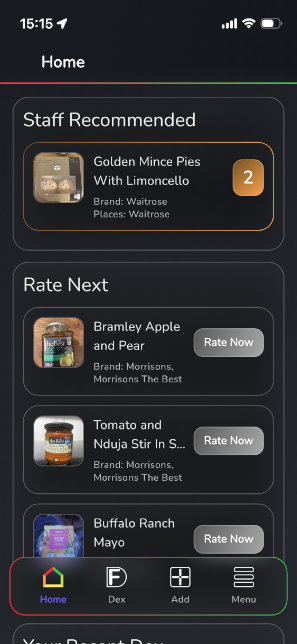
Home is your personalised starting point. The sections you see depend on your activity, access level, and Home settings.
- Complete Get Started to learn the basics and unlock Taste Diary.
- Use Rate Next, Try List, Shopping List, favourites, and recommendations as shortcuts.
- Review Taste Diary, achievements, friends, and recent activity.
- Open Settings / Preferences → Profile & Appearance → Organise Home page to reorder or hide sections.
Add
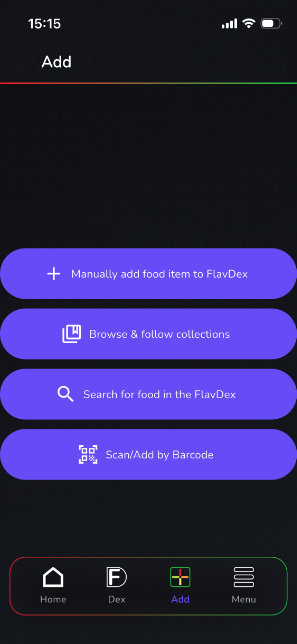
Use Add to scan, recognise, find, or create an item.
- Point the camera at a barcode to open a matching item or prefill a new one.
- If no barcode is visible, take a clear front-of-package photo for on-device product recognition where available, then confirm the suggested match.
- Use Add by Search, Add close by, or manual entry when scanning does not find the right item.
- Product and nutrition prefills can be incomplete, so check the packaging before saving.
Your Dex and Compare
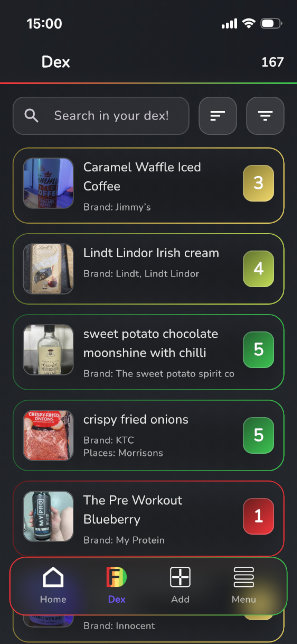
Your Dex keeps your rated items, notes, collections, and any private recipes together.
- Open an item for nutrition, tags, ingredients, recipes, images, sizes, and retailer information where available.
- Update your rating or notes, or suggest corrections to shared product details.
- Use Bookmark to add items to your Try List collection.
- Use Compare to inspect two Dex items side by side.
Search and filters
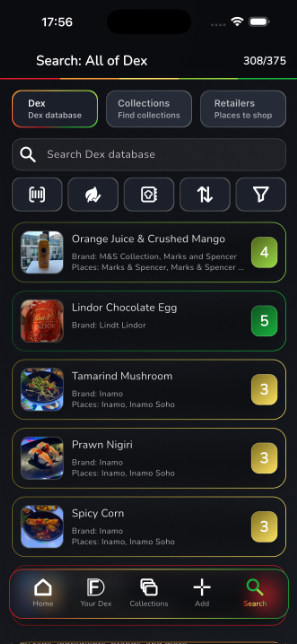
Search across foods and drinks, recipes, collections, and retailers.
- Sort by supports date, name, and product type views.
- Filter by supports rating, brand, tags, dietary, ingredients, storage, and more.
- Retailer filters include place type, facilities and services, dietary/lifestyle options, and nearby location search.
- Combine filters to build a focused result list, then clear them to return to all results.
Settings and preferences
Open the menu button on Home for account, personalisation, and support tools.
- Manage Dietary & Lifestyle, Ingredients, Brands, and Tags.
- Open Profile & Appearance to change your profile, password, visibility, theme, Home layout, widgets, and image cache.
- Use Friends, Achievements & Badges, Messages, and Taste Diary.
- Open Help & FAQ, send Feedback, view attribution, or sign out.

How can we help?
Browse the sections below or use the search bar to quickly find answers.
▶Getting started, sign-in & reset
- Create an account with email and password, or use a supported Apple or Google sign-in option. You must agree to the Terms and Privacy Policy.
- Reset your password: tap Forgot password? on the sign-in screen and follow the link in the email. If it has expired, request a new one.
- Complete Get Started: scan a barcode, find a nearby restaurant, and rate an item. Completing all three steps unlocks Taste Diary.
- Sign out: open Settings / Preferences from Home, choose Logout, and confirm.
▶Ratings, notes & rating integrity
- Rate items from 1 (Avoid), 2 (Meh), 3 (Nice), 4 (Great), to 5 (Favourite). Clear a rating if you no longer want it counted.
- Your notes are kept with your Dex entry. Aggregate ratings may be shown without publicly attributing your individual rating to you.
- Ratings must reflect a genuine experience. Fake, coordinated, or misleading ratings are not allowed. Do not submit an incentivised rating unless FlavDex expressly permits it and provides a clear disclosure method.
- We may check, exclude, label, or remove ratings that appear fake or manipulated. See the Ratings and reviews policy.
▶Browse, search & filter
- Use Search to switch between food and drink, recipes, collections, and retailers.
- Use Add by Search when you want to find and open an item before rating it.
- Sort and filter Your Dex or search results by rating, product type, brand, tags, ingredients, dietary needs, storage, and other available fields.
- Nearby retailer search requires location permission. You can disable location later in device settings.
▶Barcode & product-photo scanning
- Open Add and point the camera at the barcode. If it matches one item, FlavDex opens it; if it matches more than one, you can choose from the results.
- A new barcode may prefill product information from Open Food Facts. Always compare the name, size, ingredients, allergens, and nutrition with the package.
- If the barcode cannot be seen, use product recognition where available and take a clear, well-lit photo of the front of the package. Recognition runs on supported devices and can be wrong, so confirm the suggested item.
- You can add another barcode or size from the product editor. Only upload photos you have permission to share.
▶Add or edit foods
- Use manual entry when scanning and search do not find the correct item. Add only information you believe is accurate.
- Product editors can include names, brands, barcodes, sizes, prices, ingredients, nutrition, dietary tags, cooking details, storage, recipes, retailers, and images where available.
- Shared product edits and photos may be checked or moderated. Your personal rating and notes can be changed or cleared separately.
▶Your Dex, Compare & Pro features
- Your Dex contains your rated items and notes. Use its tabs and filters to find favourites, collections, or recipe items.
- Compare, private recipes, and eligible private-recipe sharing are available to every signed-in user.
- Taste Profile and taste recommendations, unlimited Taste Diary entries/history, and some widget or Watch personalisation require Pro.
- If a feature is locked, the app explains the requirement. Pro access is tied to your signed-in account and may not be available on every platform or during every release stage.
▶Taste Diary & health sync
- Complete all three Get Started tasks on Home to unlock Taste Diary, then open it from Home or Settings / Preferences.
- Log breakfast, lunch, dinner, snacks, and water; adjust serving amounts, daily goals, meal goals, notes, and the date.
- Free accounts can view the latest 7 days and save up to 10 non-water entries per meal category per day. Pro removes those limits.
- On supported iPhones, connect Apple Health to choose food import, food export, two-way water sync, and active-calorie subtraction separately. Sync is optional and off until you enable it. Health connection is currently unavailable in the Android app.
- Deleting a Health-imported entry from FlavDex does not delete the original Health record. Disconnecting stops future sync; see the Privacy Policy for health-data details.
▶Widgets & Apple Watch
- Supported iPhones can offer FlavDex Today, Taste Diary, Shopping List, and Nearby Menu widgets. Available sizes and actions depend on your iOS version.
- Open FlavDex after adding a widget so it can refresh your signed-in snapshot. Use Profile & Appearance → Widget settings to choose displayed goals and Taste Diary metrics.
- The Apple Watch companion can show shopping, rating, and recommendation information when the paired iPhone has synced. Some personalised recommendations require Pro.
- If a widget looks stale, open FlavDex and refresh it. Nearby Menu also needs location permission.
▶Profile, appearance, privacy & account deletion
- Open Settings / Preferences → Profile & Appearance to change your profile image, username, profile visibility, password, light/dark appearance, Home layout, widget settings, and image cache.
- Profiles are private by default. Turning on a public profile can make activity visible as described in the app and Privacy Policy.
- To request permanent account deletion, email cavan@flavdex.com from the address linked to your account. We may ask you to verify the request.
▶Collections, friends & messages
- Use collections to group items and track progress. The built-in Try List is for items you want to remember; creating your own collections unlocks after you rate 25 items.
- Use Friends to find and follow people. Close-friend tools can be used to send items or share eligible private recipes.
- Open Messages for shared items, recipe invitations, and app messages. Unread messages show an indicator on the Home menu button.
▶Troubleshooting
- Can’t sign in: check your email/password and connection, or request a new password-reset email.
- Camera or location denied: open your device settings, find FlavDex, and enable only the permission you want to use.
- Barcode or photo not recognised: clean the lens, improve lighting, hold the camera steady, and try the barcode. You can always search or add manually.
- Health will not connect on iPhone: confirm Apple Health is available and review each permission in Taste Diary health settings. Health connection is currently unavailable on Android.
- Images are stale or storage is high: open Profile & Appearance → Image cache to review or clear cached images.
- App feels slow: check connectivity, install the latest version, and reopen the app. Uploads and fresh search results need a network connection.
▶Ads, cookies & analytics
FlavDex may introduce clearly labelled ads. Personalised ads or non-essential web cookies will only be used where legally permitted and with consent where required. See the Privacy Policy for current details and controls.
▶Contact support or report a problem
Open Settings / Preferences → Help & FAQ or Feedback. You can also send feedback online or email cavan@flavdex.com. For technical problems, include what you were doing, screenshots if safe, your device model, operating-system version, and FlavDex app version. Do not send passwords or health records.